
How to Configure Grade Weight Systems
Setting up a grade weight system in AMS requires careful planning to ensure that each assessment component is accurately represented and contributes appropriately to the final course grade.
In this guide, we’ll walk through configuring categories, assigning weights, and setting quantity requirements. By following these steps, college administrators can learn to create consistent and reliable grading systems that meet academic standards and course requirements.
Important: Before starting, review the Grading Weight System - Core Concepts & Best Practices to understand how to set up categories and weights in line with AMS recommendations.
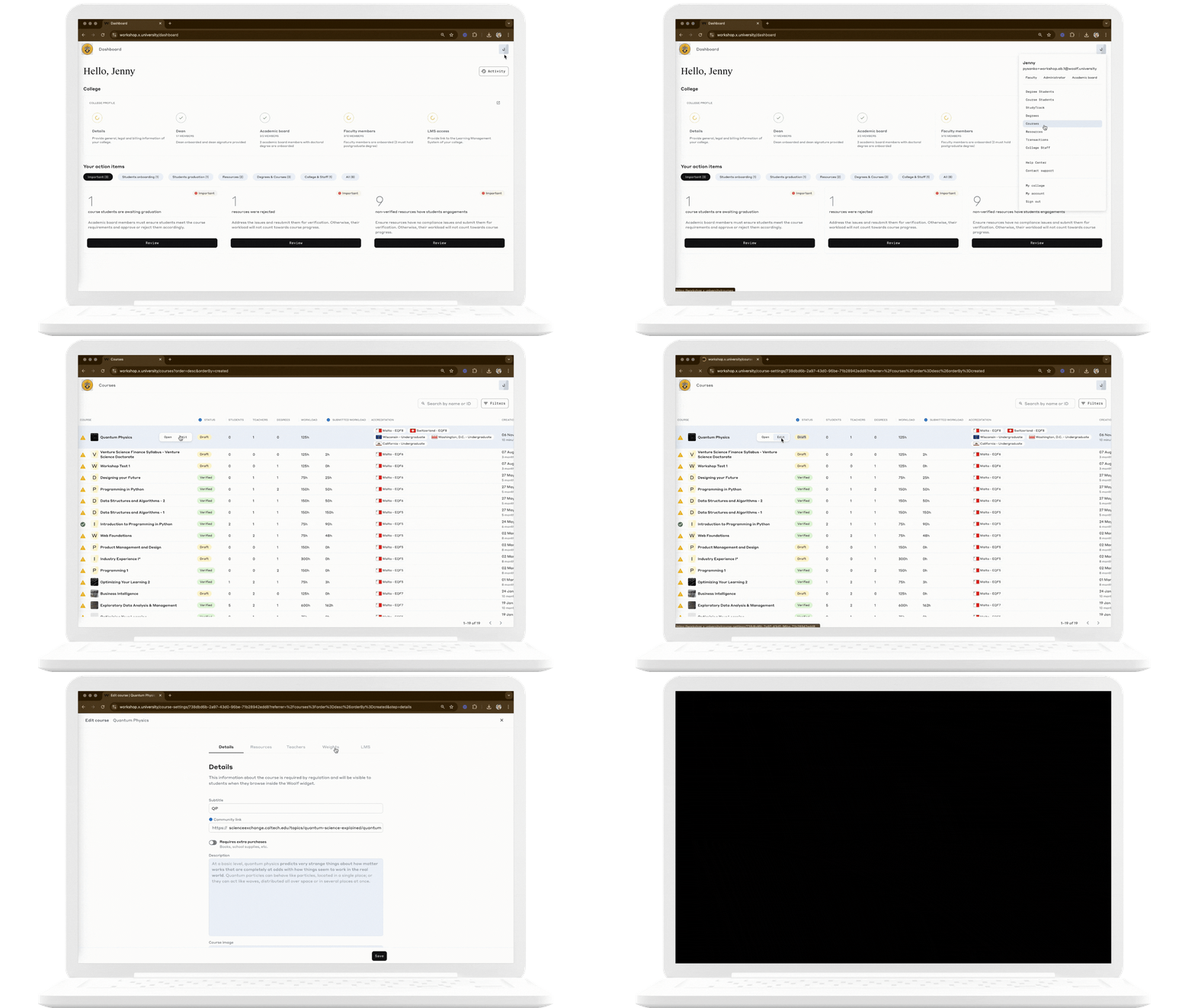
Step 1: Access the Course and Navigate to Grade Weight Setup
Log in to AMS as a college administrator.
Select and edit the relevant course for which you want to create a grade weight system.
Navigate to the Weights Setup in the course settings.
Step 2: Add Grade Weight Categories
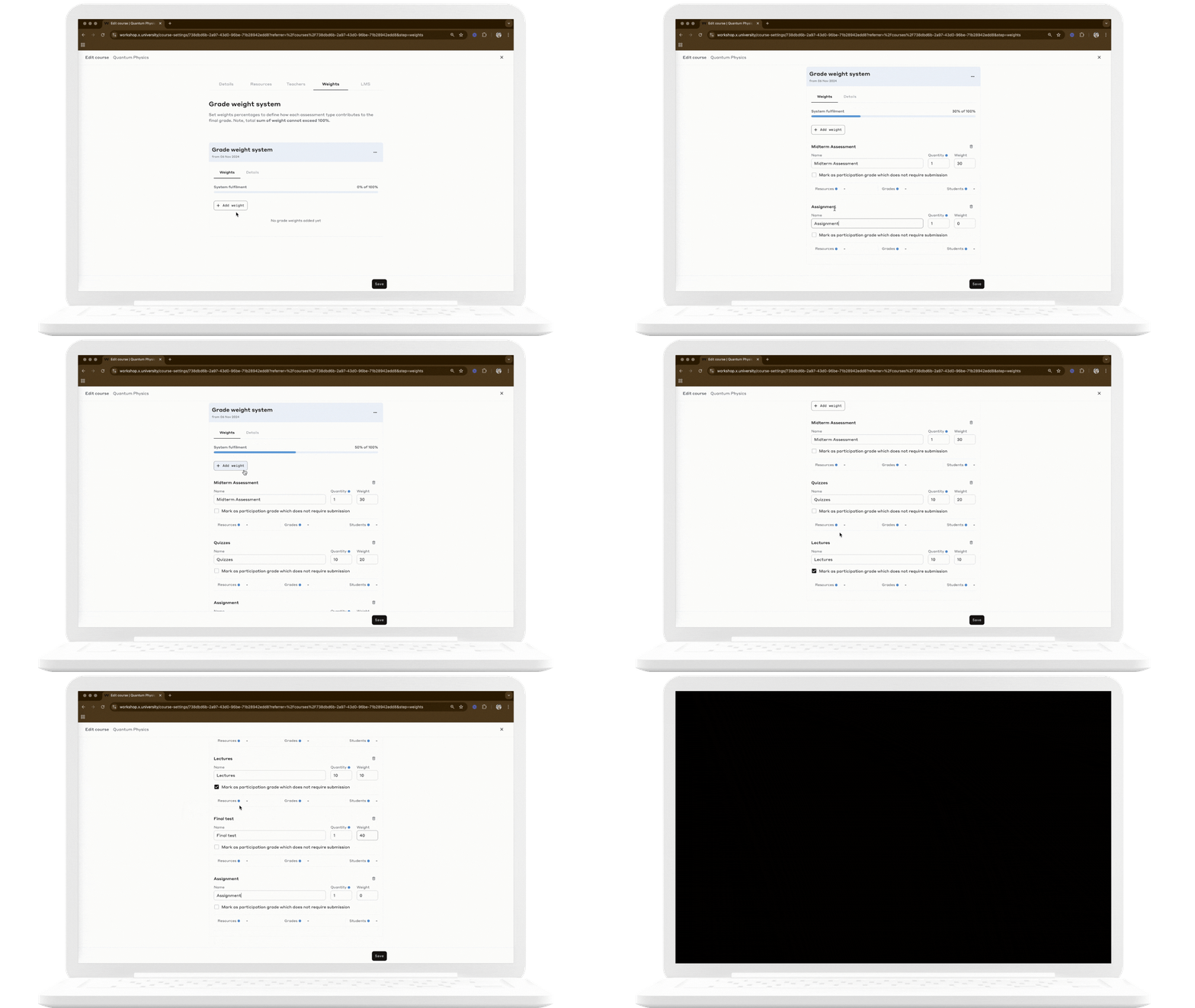
Create a New Grade Weight Category
Each course can include multiple grade weight categories (e.g., quizzes, projects, exams), each representing a type of assessment.
Categories are created manually in AMS, and each category’s weight and quantity must be configured directly in AMS.
Example Setup
As an example, let’s add the following categories:
Category | Weight (%) | Quantity Required | Participation | Purpose |
|---|---|---|---|---|
Midterm Assessment | 30% | 1 | ✘ | Let's create a "Midterm Assessment" category that contributes 30% to the final grade, with one required project submission to meet this criterion. |
Quizzes | 20% | 10 | ✘ | Let's include a "Quizzes" category to group multiple equally weighted assessments. By setting a quantity of 10, we ensure that all quizzes collectively contribute 20% to the final grade. Tip: It is efficient to use a single category for assignments of similar weight, like "Quizzes," to simplify management. Avoid separate categories for each unless weights or importance vary significantly. |
Lectures | 10% | 10 | ✓ | Let's also have a weight category to score students based on their engagement in lectures and ensure it is marked as a participation grade. This allows the grade to contribute directly to the final grade without requiring a submission. |
Final Test | 40% | 1 | ✘ | We'll use the "Final Test" category to represent a comprehensive exam that comprises 40% of the total grade, indicating a significant assessment for the course. |
Graded Homework | 0% | Flexible | ✘ | Let's add a "Graded Homework" category with 0% weight. This allows assignments to be graded and recorded on the transcript without impacting the final grade average. |
Tip: To streamline the grading process, it’s efficient to avoid creating an excessive number of grade weight categories, as this can complicate grading. If a course requires grading numerous assignments, consider consulting Woolf Support for potential setup optimizations.
Step 3: Review and Save the Grade Weight System
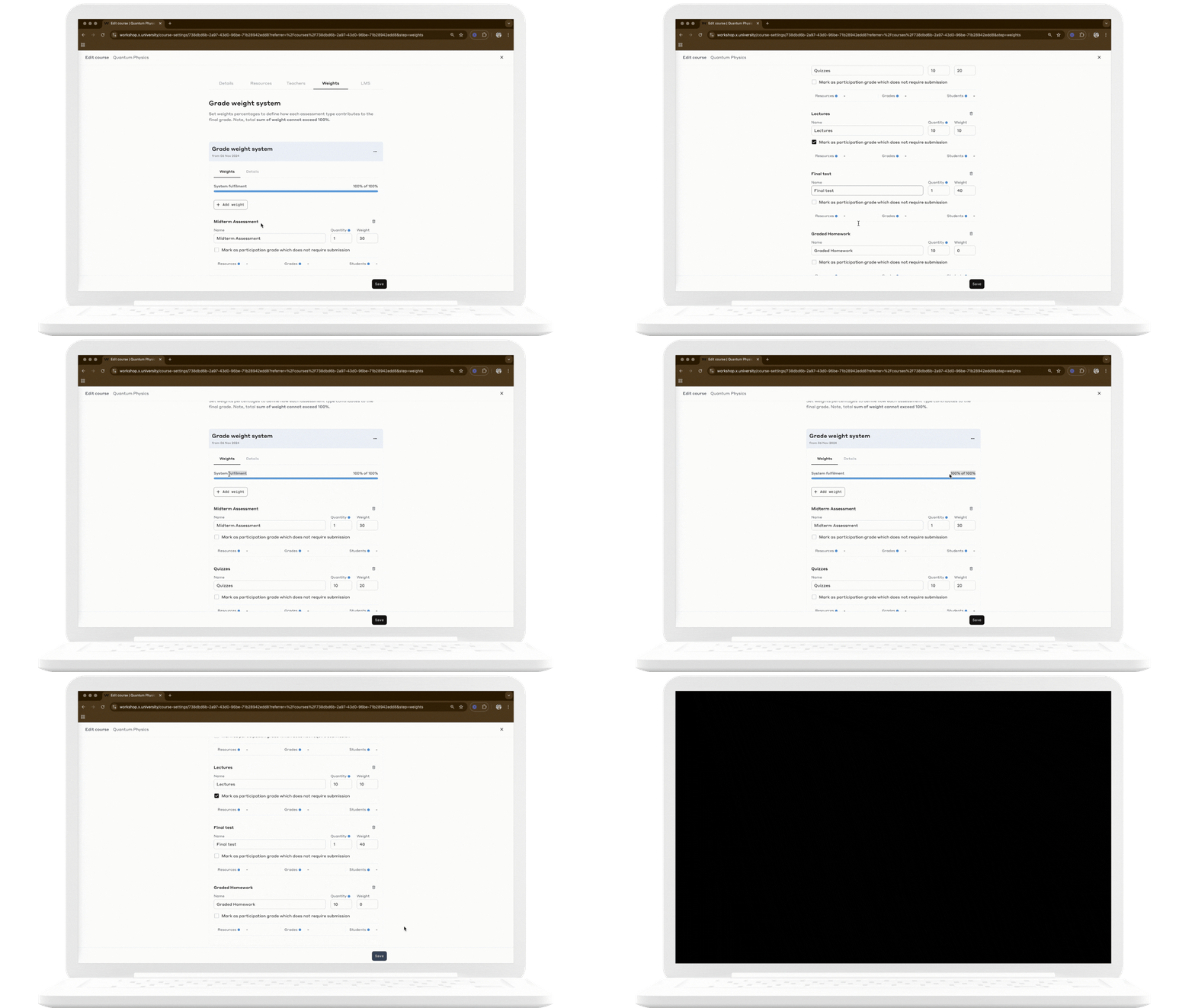
Review the Total Weight: Ensure that the total across all categories is 100%.
In our example, the weights add up to 100%: Midterm Assessment (30%) + Quizzes (20%) + Lectures (10%) + Final Test (40%) = 100%.
Confirm Quantity Requirements: Check that the required quantity for each category aligns with course requirements.
For instance, if the "Lectures" category is based on participation grade, the quantity should be set to number of lectures the student is supposed to be attending.
Enable and Save: Once all categories are set, save the grade weight system.
Step 4: Verify Grade Weights with Canvas and Airlock API
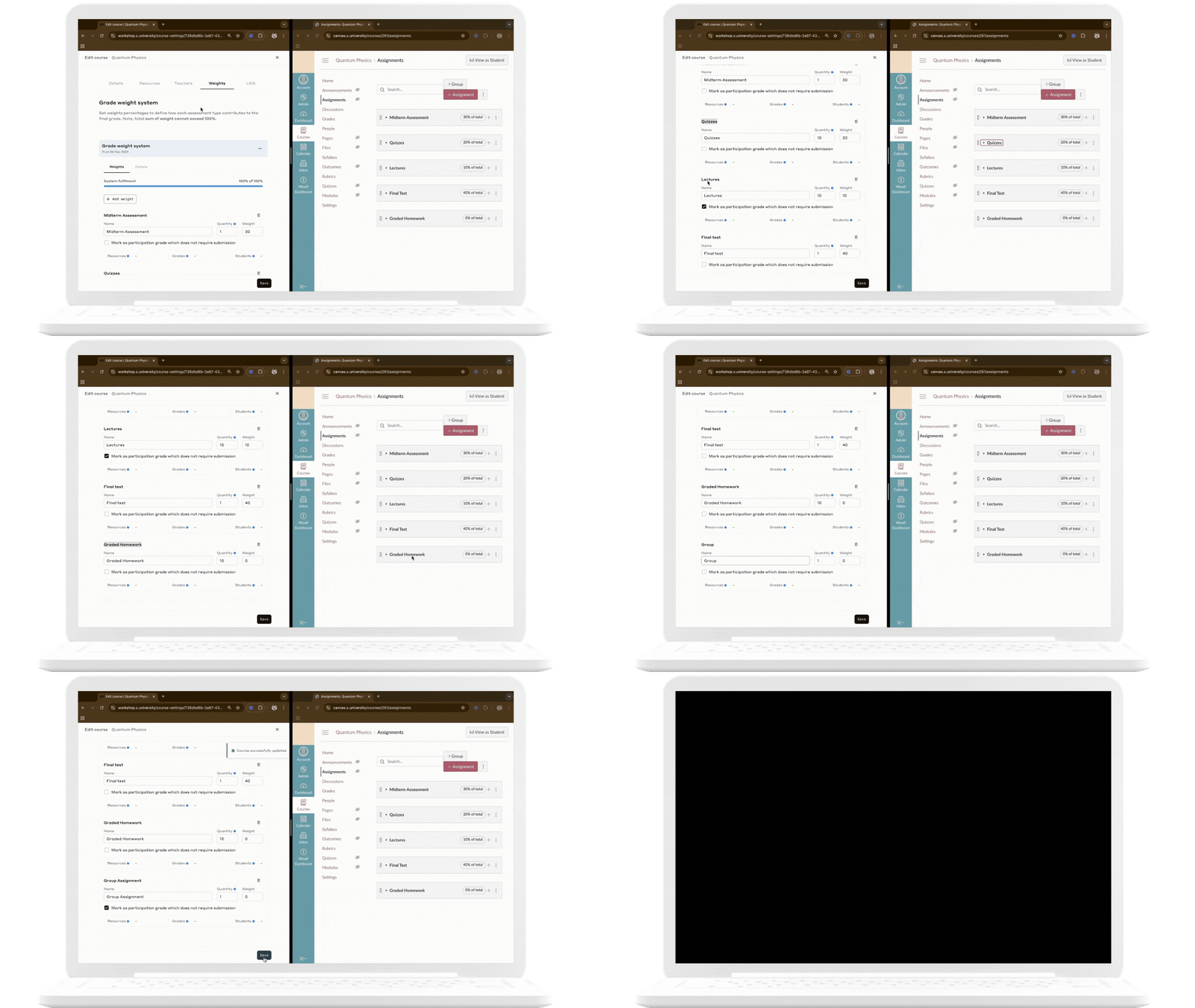
Grade weight systems configured in AMS are synchronized automatically with Canvas, while other LMS platforms can access these weights through the Airlock API. In Canvas-integrated courses, the grade weight system is automatically converted to assignment groups, which can be assigned to resources at the time of their creation in Canvas. For colleges using the Airlock API, grade weights are assigned directly via API during resource creation to maintain accurate alignment.
Verify Canvas Integration
Upon saving the grade weight system in AMS, assignment groups are automatically created in Canvas, reflecting the grade weight categories. For more information on grade weight integration, read Grades Synchronisation with Canvas.
Verify Airlock Integration
Use the course query to fetch a course and access its grade weights.
query {
  course(id: "COURSE_ID") {
    weights {
      id
      name
      percentage
      quantity
    }
  }
}
Response Example:
{
  "data": {
    "course": {
      "weights": [
        { "id": "1", "name": "Quizzes", "percentage": 20 },
        { "id": "2", "name": "Midterm Projects", "percentage": 30 }
      ]
    }
  }
}
For more information on grade weight integration, read Grade Management using API.