
Setting Up Multi-Factor Authentication (MFA)
Multi-Factor Authentication (MFA) adds a second layer of security to your Woolf account. After entering the email verification code, you'll confirm your identity using a passkey registered to your device — making your account resistant to phishing, password reuse, and stolen sign-in links.
Note: MFA is currently enabled for select colleges. If your college is part of the rollout, you'll be prompted to set up MFA the next time you sign in. If you don't see the MFA prompt, no action is required from you yet.
What is a passkey?
A passkey is a secure credential stored on your device (laptop, phone, or hardware security key) that unlocks with the same method you already use to unlock the device — fingerprint, face recognition, device PIN, or a USB security key.
Unlike a password, a passkey:
Cannot be phished, guessed, or reused on a fake site
Never leaves your device
Is unique to Woolf — it cannot be used to sign in anywhere else
You can register more than one passkey (for example, one on your laptop and one on your phone) so you're not locked out if a single device is unavailable.
Setting up MFA for the first time
The first time you sign in after MFA is enabled for your college, you'll be guided through enrollment.
Sign in with your email as usual and enter the 6-digit verification code sent to your inbox.
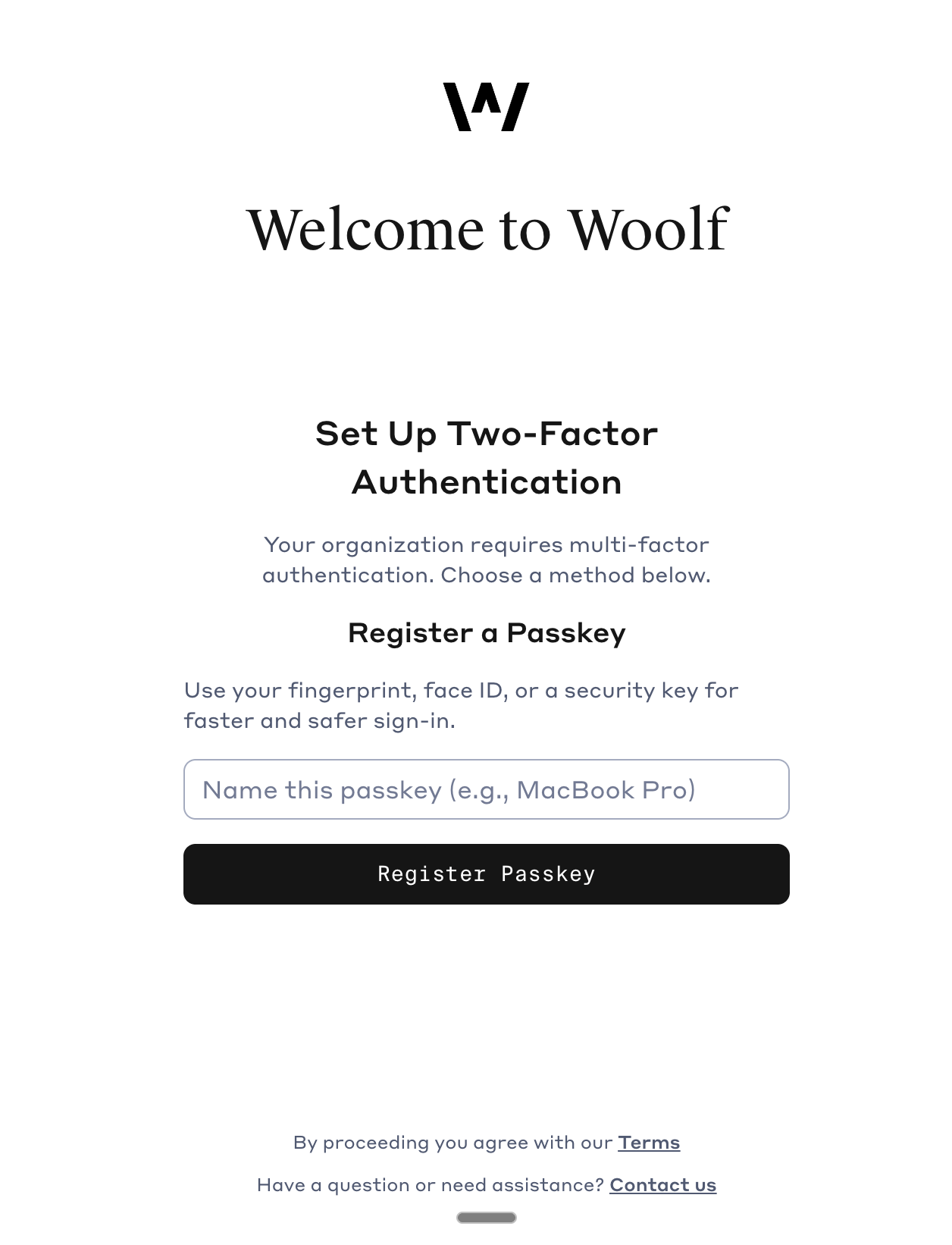
On the Set Up Two-Factor Authentication screen, click Register Passkey.
Give the passkey a recognizable name (for example,
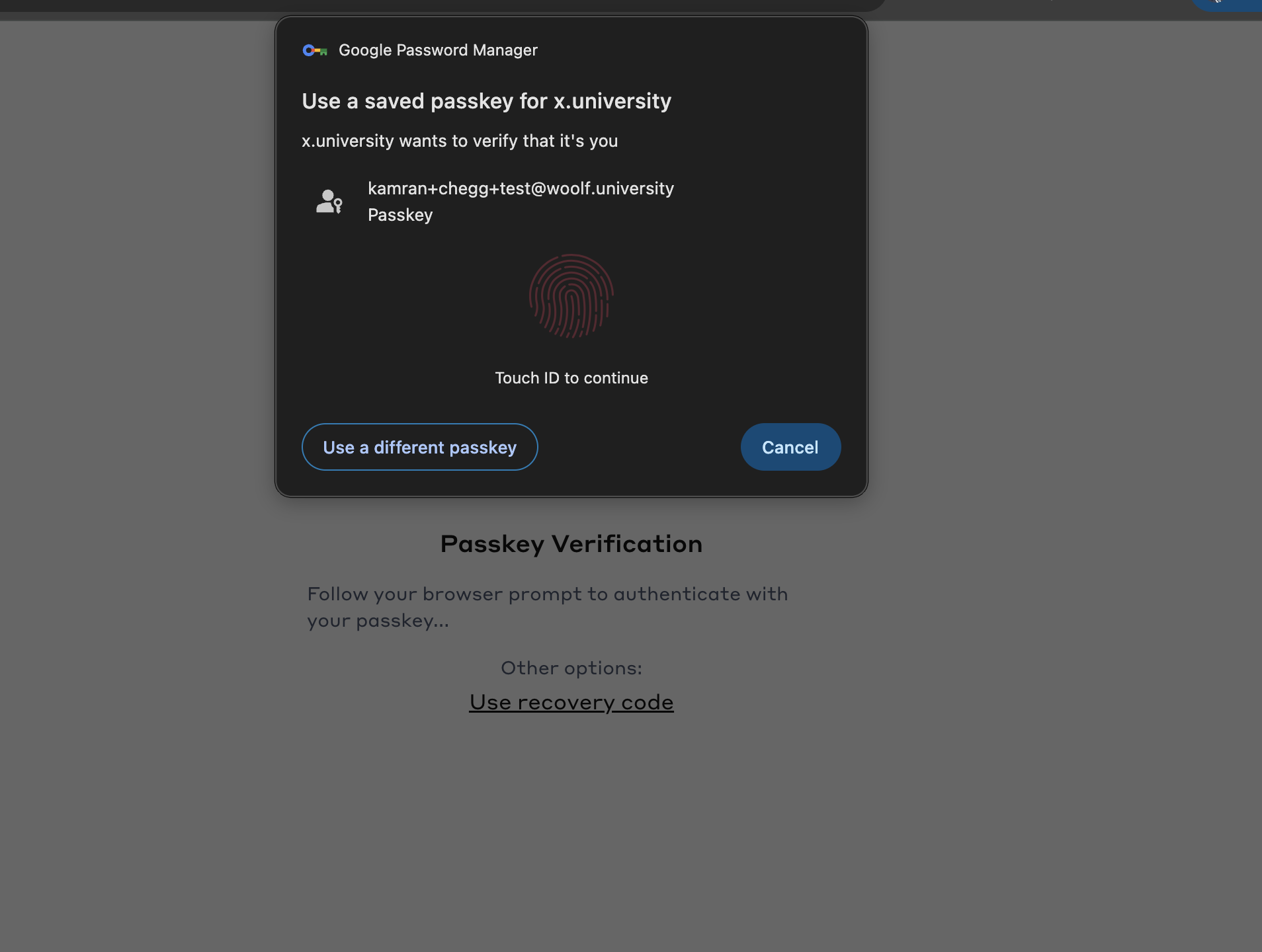
MacBook ProoriPhone). This helps you identify it later if you register multiple devices.Follow the prompt from your browser or operating system to confirm with your fingerprint, face, device PIN, or security key.
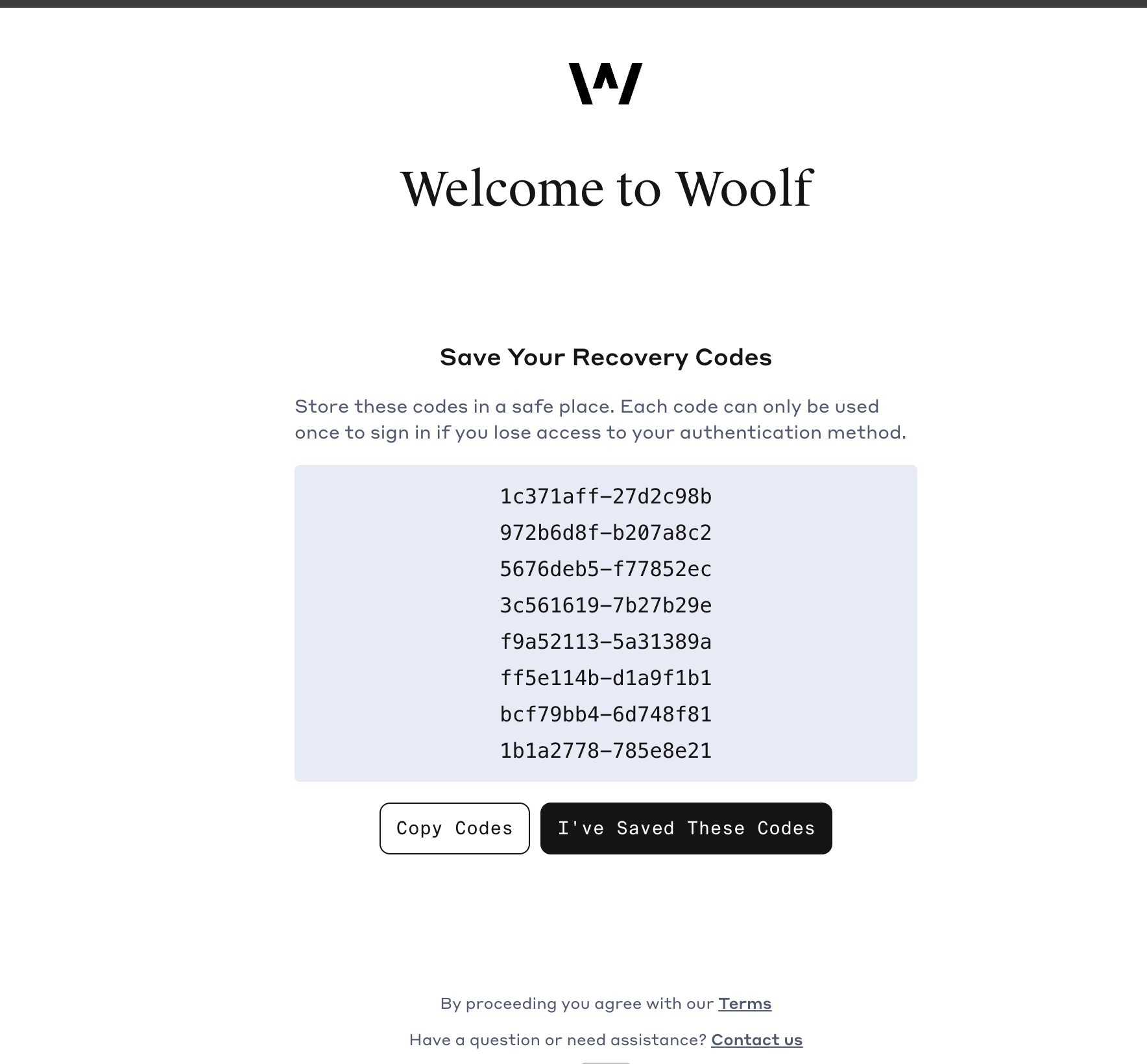
Save your recovery codes (see below) when prompted, then continue to Woolf.
Your passkey is now registered. From here on, every sign-in will ask you to confirm with your passkey after the email code.
Saving your recovery codes
Right after you register your first passkey, Woolf will show you a list of one-time recovery codes. These are your fallback if you ever lose access to all your registered passkeys.
Copy the codes and store them somewhere safe — a password manager, an encrypted note, or a printed copy in a secure location.
Each code can be used only once to sign in.
You will not be able to view these codes again after leaving the screen. You can regenerate a new set later from your account settings, but doing so invalidates the old set.
Signing in after MFA is set up
Enter your email and the verification code sent to your inbox.
On the Passkey Verification screen, your browser will prompt you to use your passkey — confirm with your fingerprint, face, PIN, or security key.
You're signed in.
If your usual passkey is unavailable, click Use recovery code on the verification screen and enter one of the codes you saved.
Managing your passkeys and recovery codes
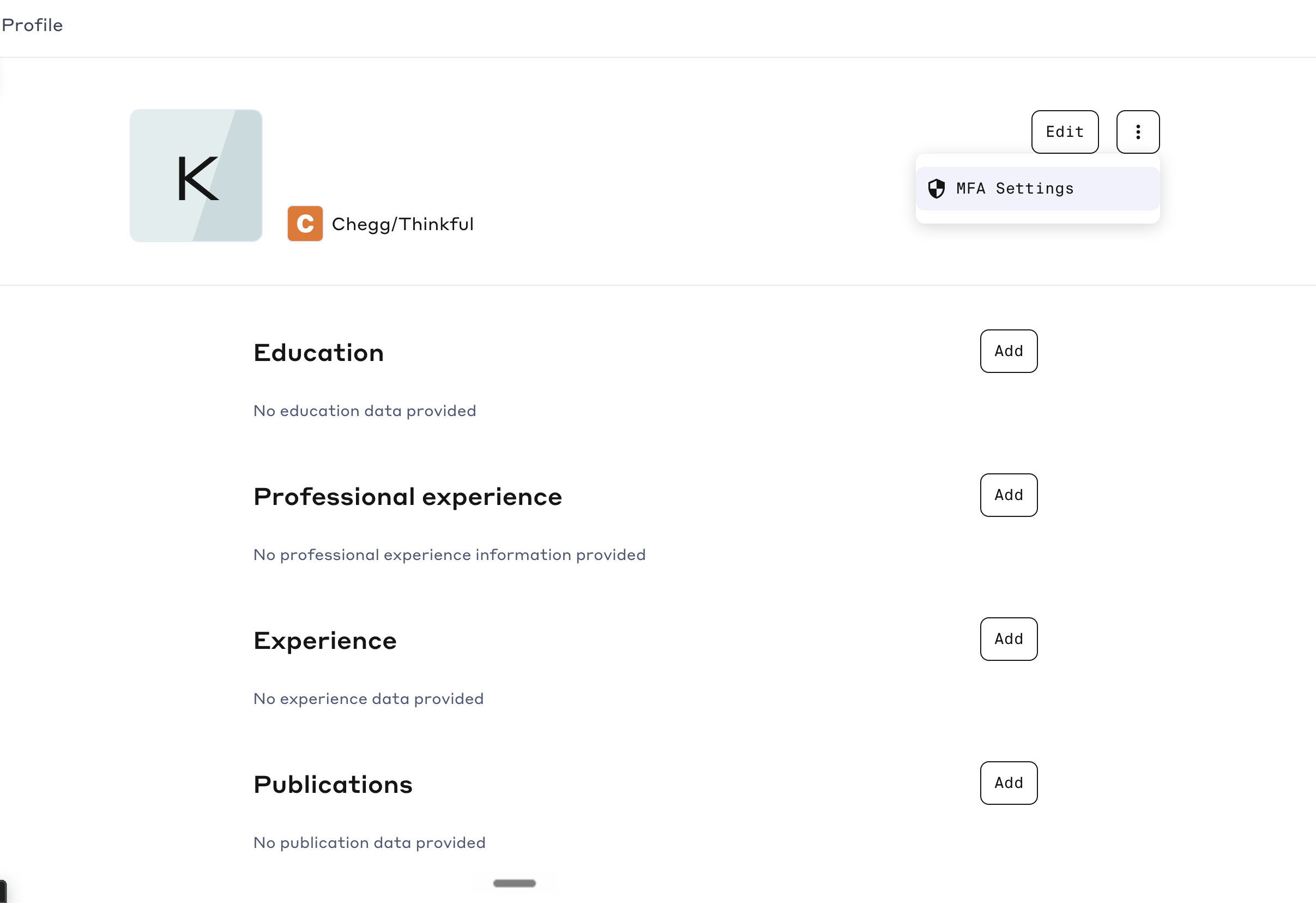
Go to My Account → Two-Factor Authentication to:
Add another passkey for a second device, so you're not locked out if one is lost.
Remove a passkey you no longer use (for example, an old laptop).
Regenerate recovery codes — useful if you've used some, lost the list, or suspect they've been seen by someone else. Regenerating immediately invalidates the previous set.
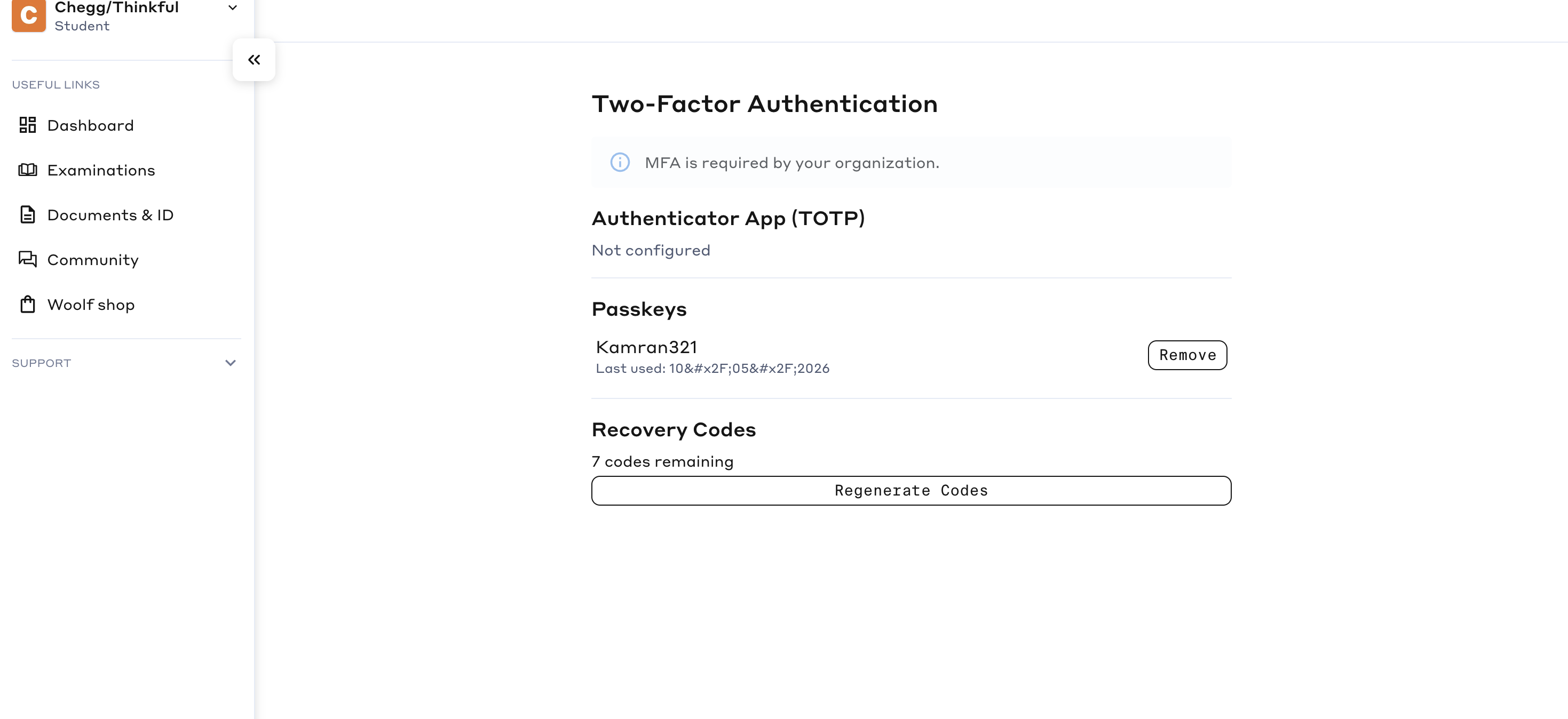
We recommend registering at least two passkeys (e.g. one on your phone and one on your laptop) and keeping a fresh set of recovery codes saved.
If you lose access to all your passkeys
If your registered devices are unavailable and you don't have a recovery code:
First, try one of your recovery codes at sign-in if you have any saved.
If you've used all your codes or never saved them, contact our team at support@woolf.education from the email address on your account. The support team can verify your identity and reset your MFA so you can register a new passkey.
For security, MFA can only be reset by Woolf staff after identity verification — the process is not self-service.
Frequently asked questions
Q: Will MFA replace the email code at sign-in?
A: No. The email code remains the first step. The passkey is an additional second step.
Q: Which devices and browsers support passkeys?
A: Most modern browsers and operating systems released in the last few years support passkeys natively, including recent versions of Chrome, Safari, Edge, and Firefox on macOS, Windows, iOS, Android, and Linux. Hardware security keys (such as YubiKey) are also supported.
Q: Can I use the same passkey on more than one device?
A: Some platforms (for example, Apple devices signed into iCloud, or Google's password manager) sync passkeys across devices in the same ecosystem automatically. Otherwise, register a separate passkey on each device.
Q: What happens if MFA isn't enabled for my college?
A: Nothing changes for you — you'll continue to sign in with the email verification code as before. We'll let you know in advance if MFA is rolled out to your college.
Q: Why doesn't my college have MFA yet?
A: MFA is being rolled out gradually. If your organization requires it, your college admin can request to be added to the rollout by contacting Woolf support.