
Degree Students Page
The Degree Students page provides a comprehensive overview of students enrolled in formal degree programs within the Academic Management System (AMS). Colleges and Woolf use this page to monitor students' overall progress toward degree completion, including administrative, financial, and academic milestones. This page is crucial for tracking compliance with accreditation standards while ensuring students meet all degree requirements and are submitted for graduation.
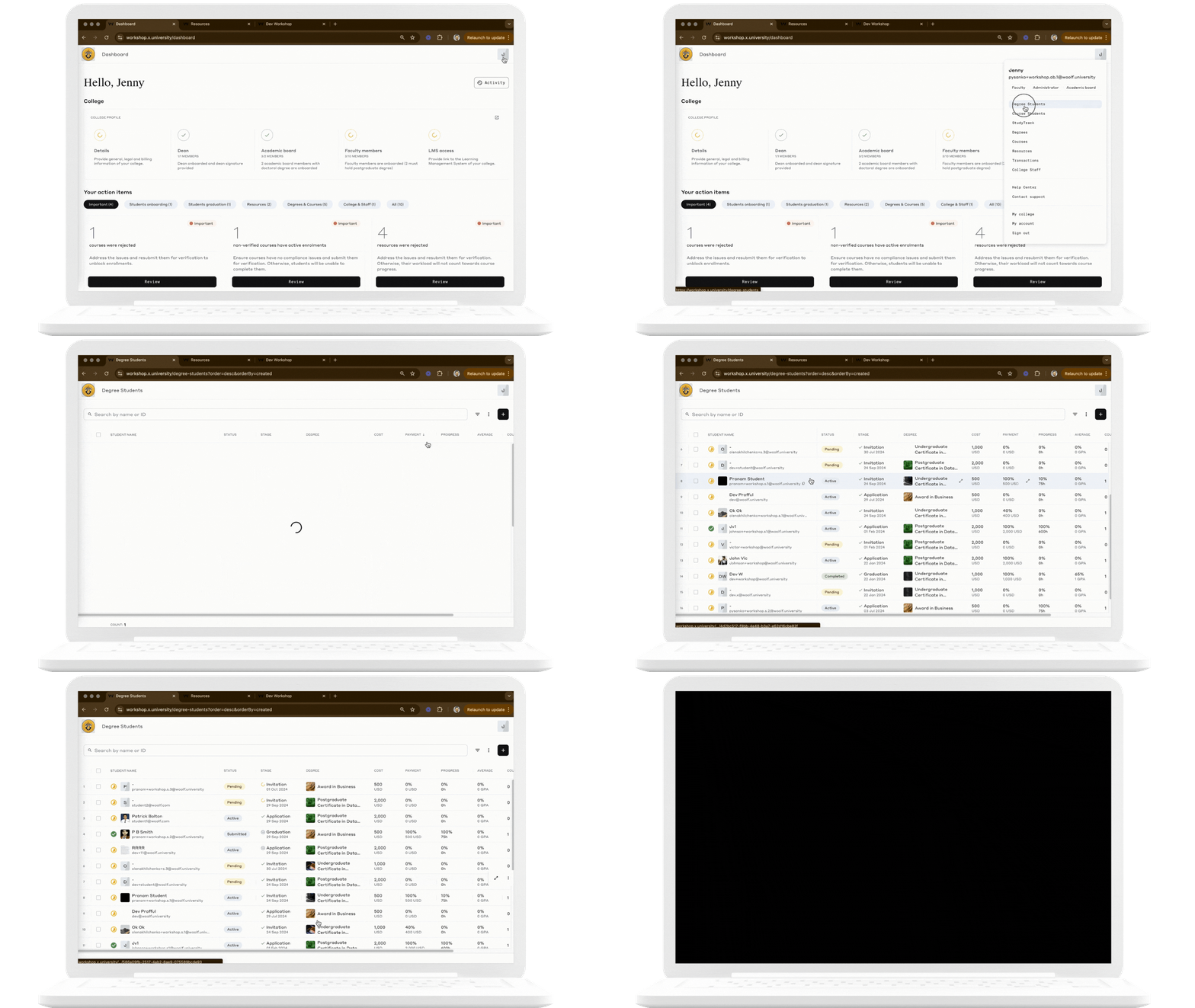
Columns and Data
Each student's record includes their name, email, progress status, degree, cost, payment status, and overall degree progress.
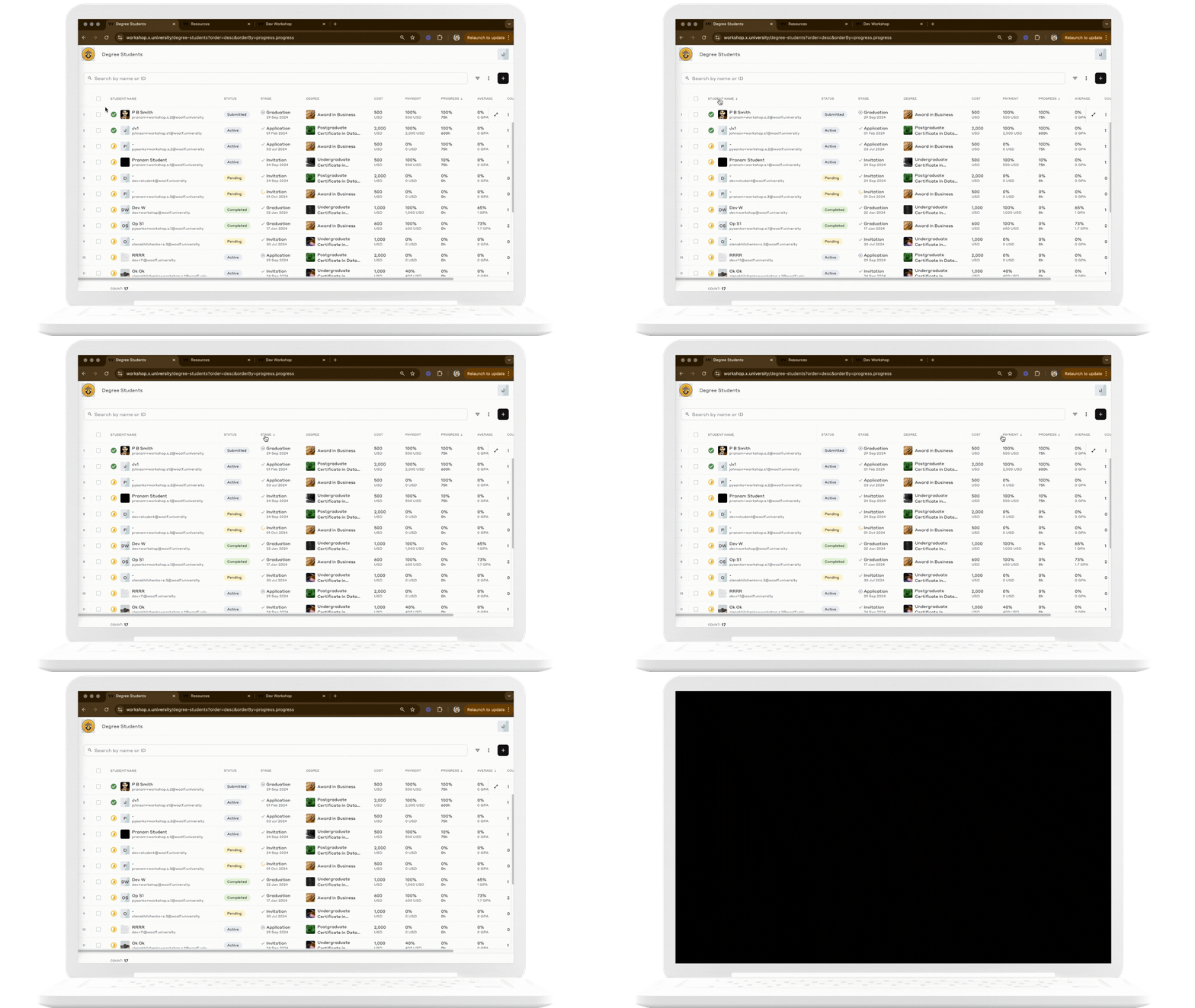
Column Details
Column | Data |
| This column displays the name and email of the student enrolled in the degree program. Clicking on the student's name allows faculty to navigate to more detailed student information. |
| This column indicates the student's current progress stage in their degree program. The stages provide insight into where the student is within the academic journey The statuses are:
Faculty can hover over the status for more detailed information on the student's current stage. 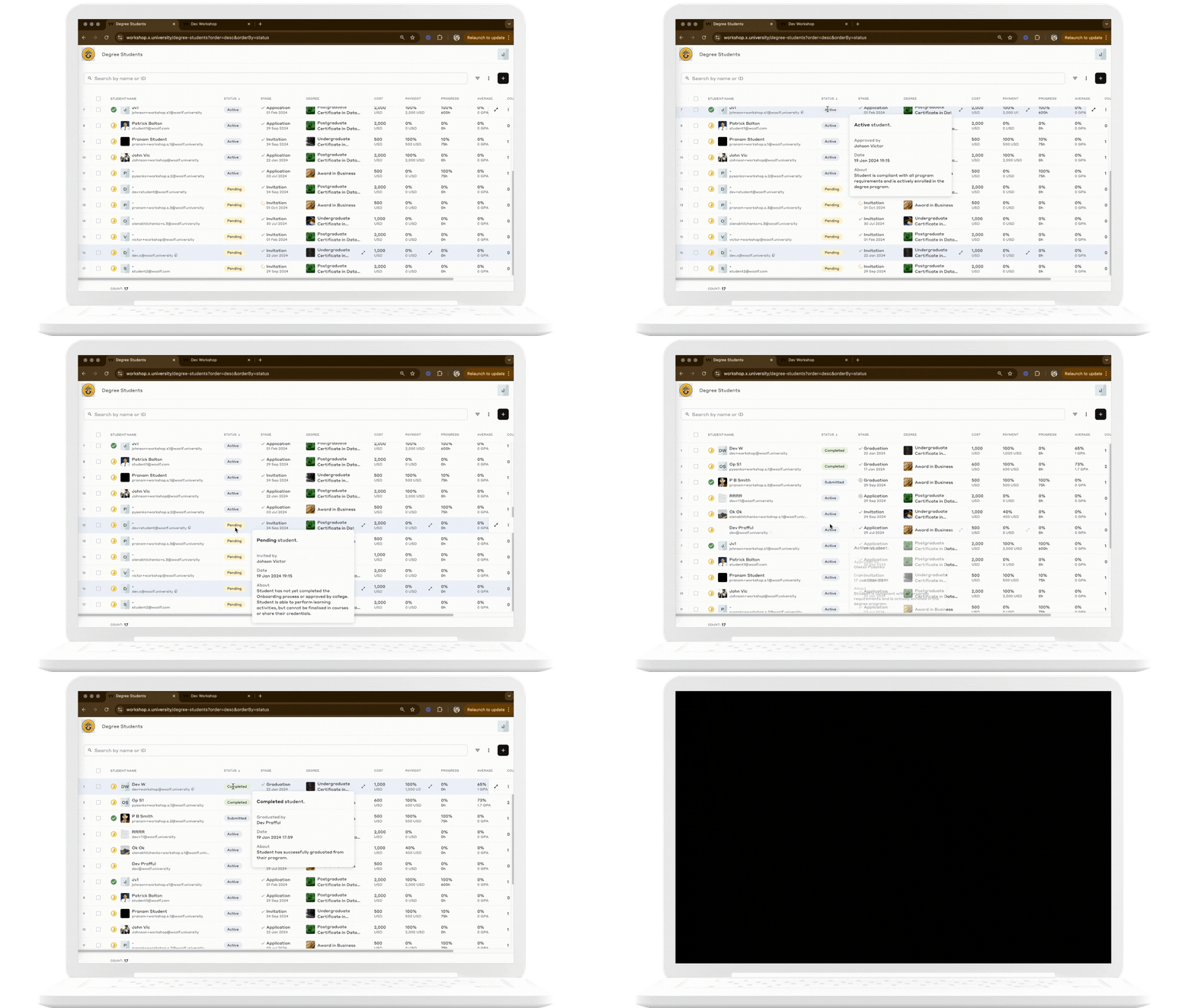 |
| This column displays the specific stage of the student in their degree program, such as "Application," "Invited," or "Graduated." Hovering over this field provides a detailed timeline of completed and pending stages in the student's academic progress. |
| Displays the specific degree program in which the student is enrolled. Clicking on the degree name brings up more details about the program requirements. 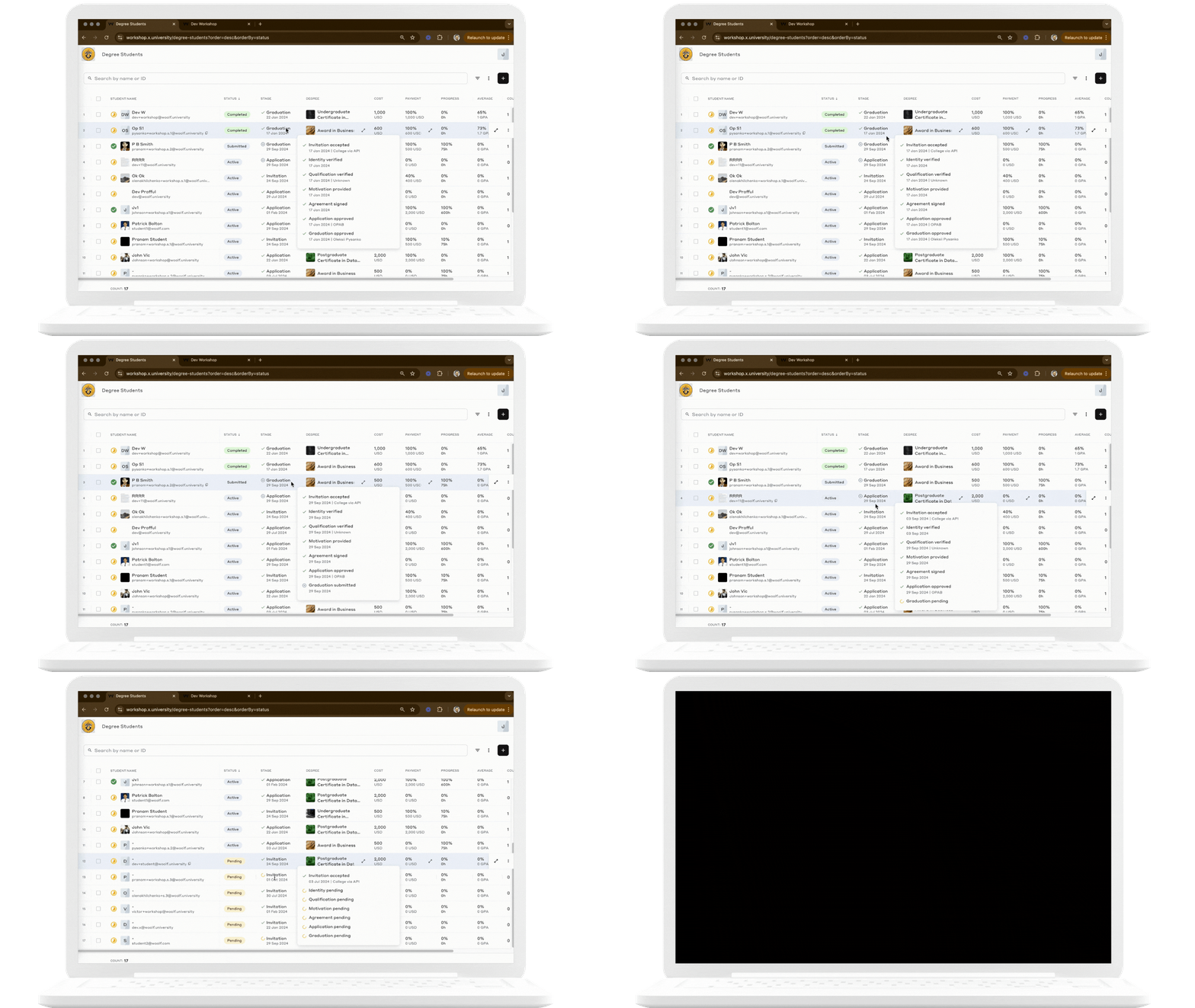 |
| These columns display the tuition fees and the percentage of fees paid by the student. College faculty and administrators can manage and monitor payments by clicking on the payment percentage. This ensures that all financial obligations are tracked and met in accordance with the program's requirements. |
| Displays the percentage of degree requirements the student has completed, based on completed courses, along with the total hours completed toward the degree. Hovering over this field provides additional detailed information on progress toward academic and administrative milestones. For more information on how degree progress is calculated, refer to How Degree and Tier Progress Are Calculated? |
| Displays both the percentage-based average score and the student's cumulative GPA, providing an overview of their academic performance. |
| Displays the number of courses the student has engaged with as part of their degree program. You can click this number to access records of the student's detailed progress and engagement within each course on the Course Students page. This provides insights into how the student has interacted with course materials, completed assignments, and fulfilled course requirements. |
| Indicates whether the student is ready to be submitted for degree completion, based on three key factors: onboarding status, degree progress, and payment completion.  You can hover over the tracker to quickly view which requirements are met and what remains pending. 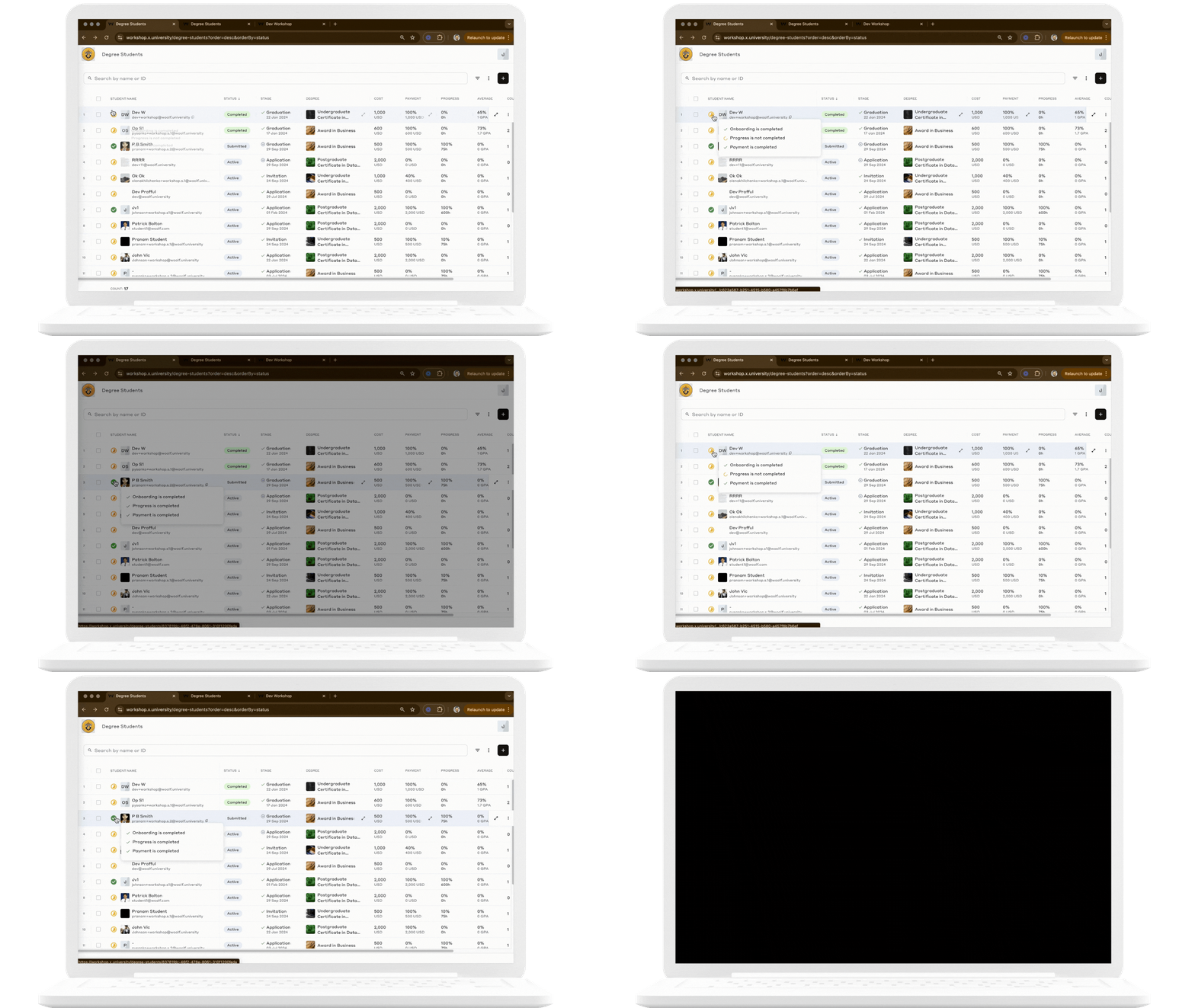 |
Note: Each student record on the Degree Students page is clickable, and provides an in-depth view of the student’s academic profile and activities of the student’s degree journey.
Records Filtering
The student records on the Degree Students page can be filtered based on the following criteria for tracking, management, and bulk actions:
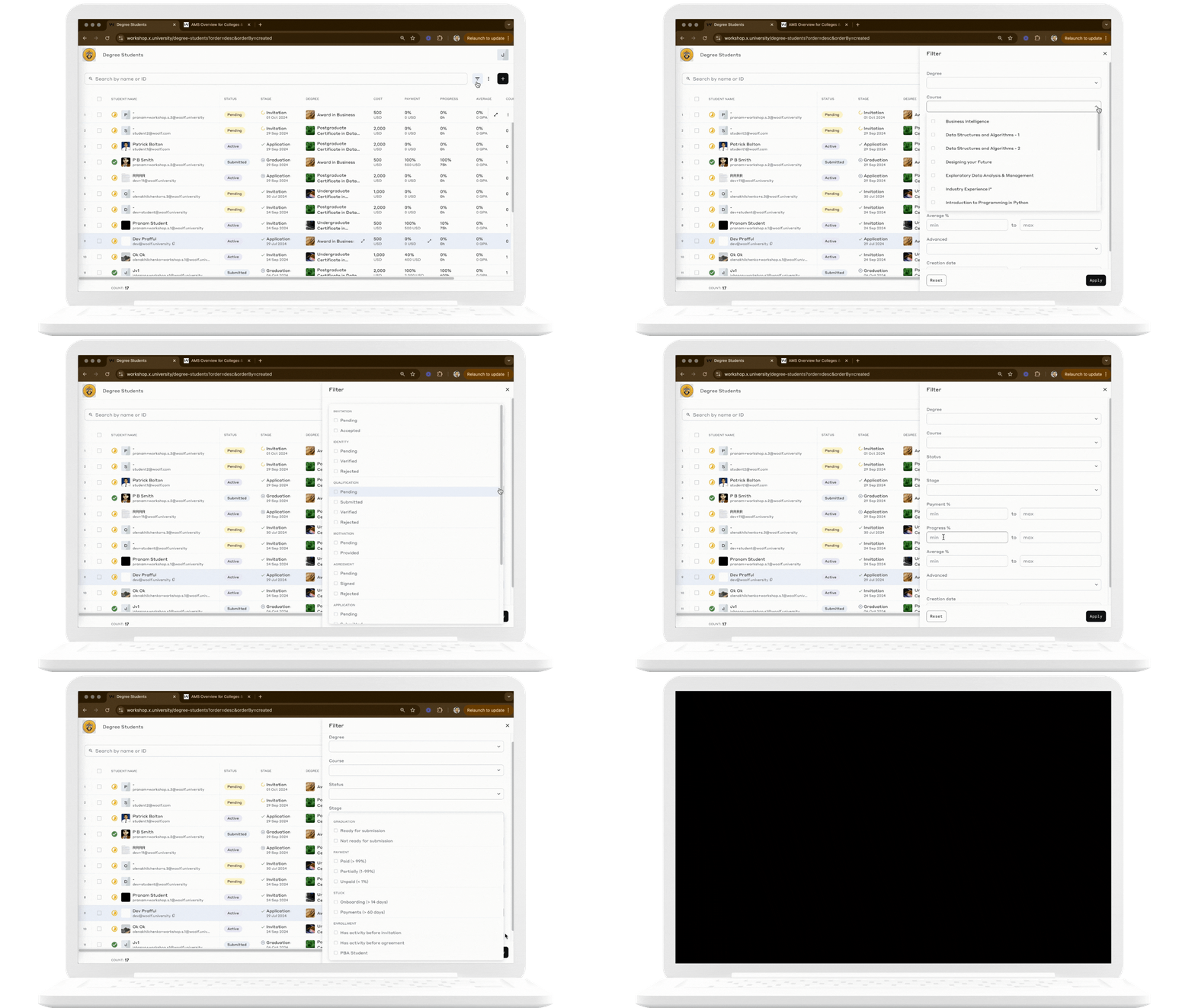
Available Filters
Filter | Description |
| Filter by the specific degree program. |
| Filter by the courses. |
| Filter by the student's current degree progress, with options such as: Active, Submitted, Pending, Rejected, Completed or Archived. |
| Filter by the student's specific progress stage in their degree journey. This includes multiple categories across various phases of enrollment, identity verification, qualification, and graduation. Each stage reflects where the student stands in the completion process:
|
| Filter by the percentage of the payment made by the students. |
| Filter by the percentage of degree requirements completed. |
| Filter by the student’s average grade. |
| Graduation
Payment
Stuck
Enrollment
|
| Filter by the record creation date range. |
Note: Additionally, administrators can also use the search function to locate specific students by name, email, or student ID.
Actions
The Degree Students Page in Woolf’s AMS allows administrators to manage various tasks related to students’ progression toward degree completion and submission. Below are the key actions available:
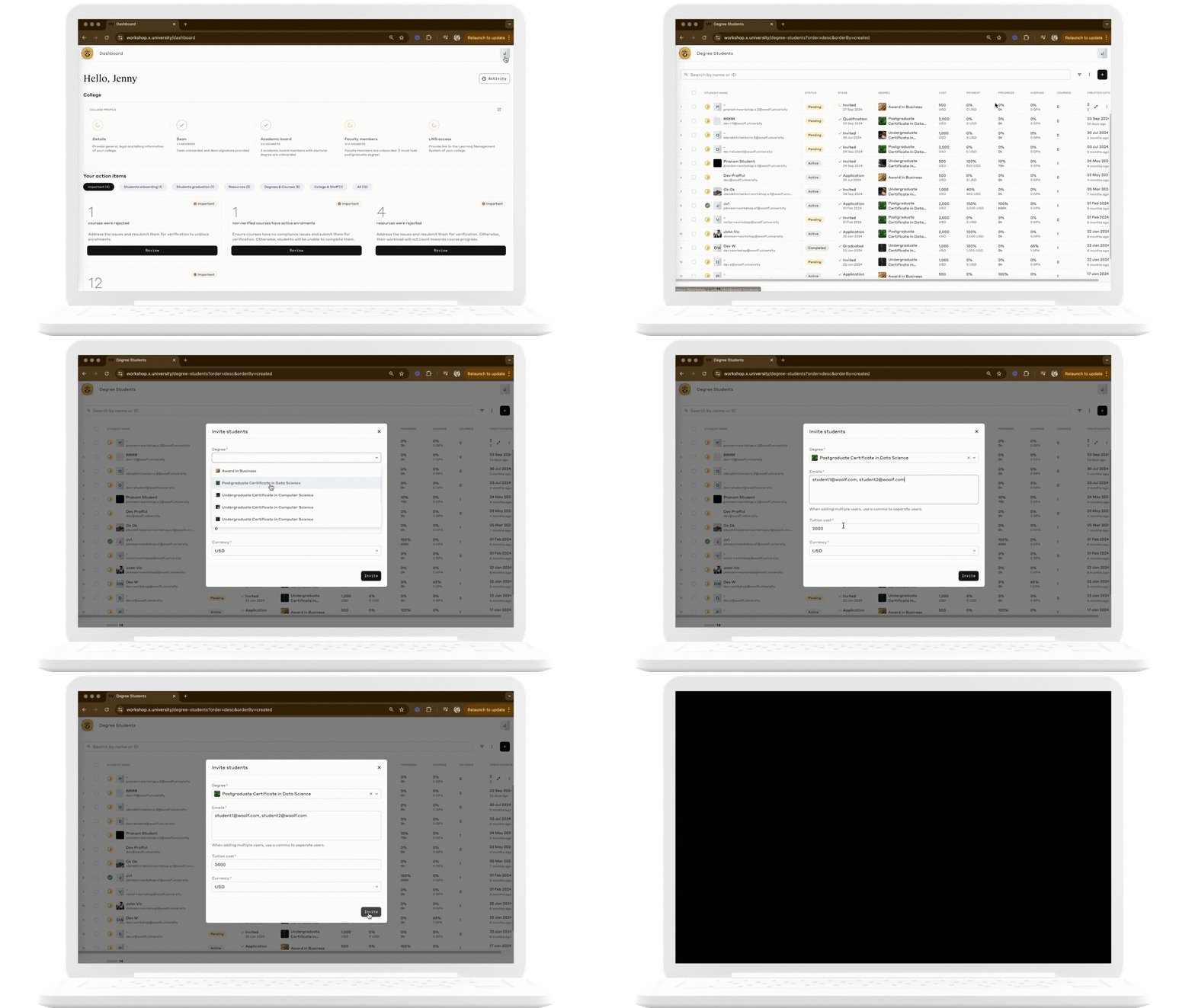
Invite Students : Administrators can invite students to a degree program by providing necessary details:
Degree: Select the relevant degree program.
Emails: Enter the students' emails, separated by commas.
Tuition Cost: Specify the tuition cost for the students.
Currency: Choose the currency for tuition.
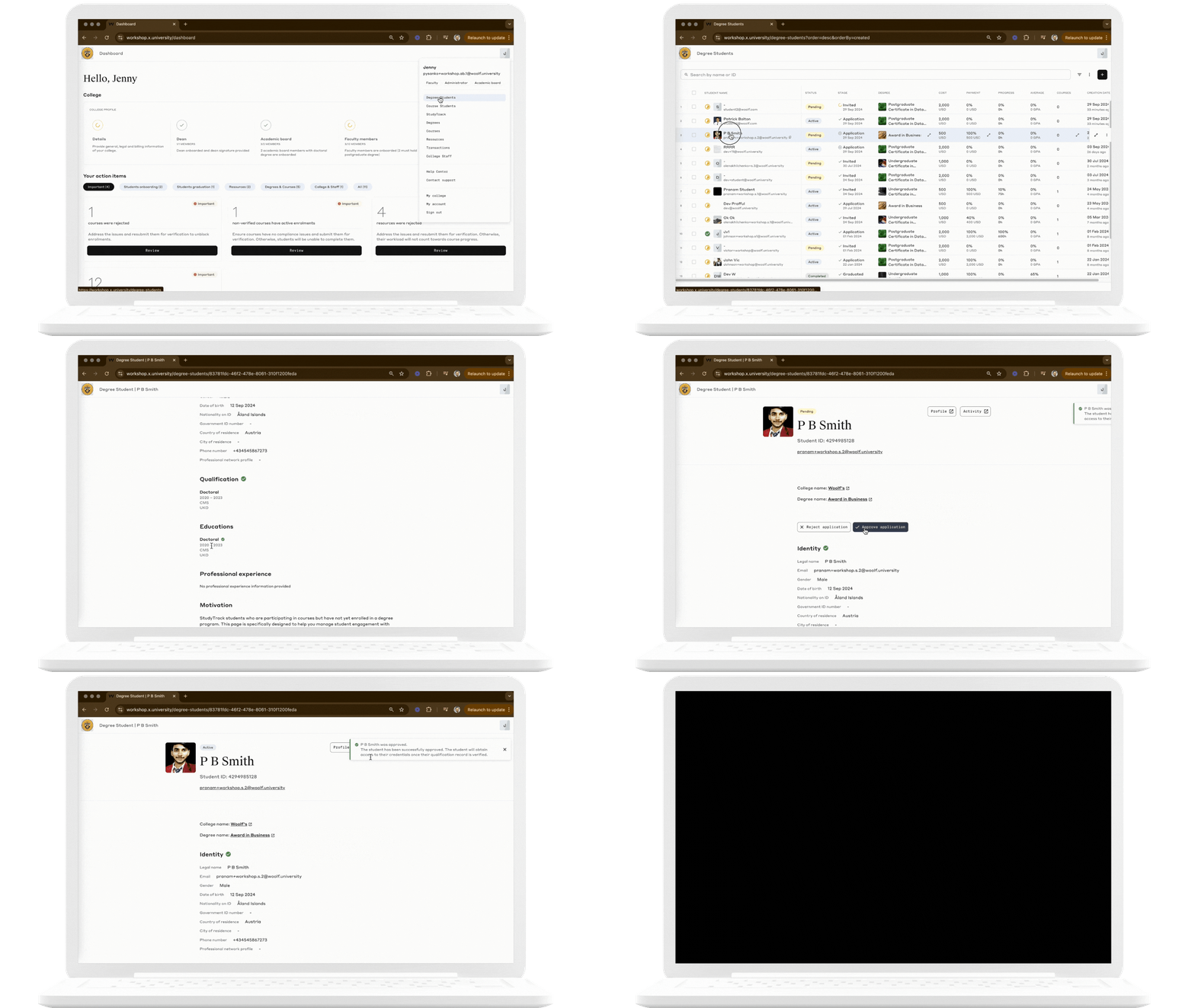
Approve/Reject Applications: Administrators can review and approve or reject student applications:
Approve: Confirm a student’s application for the degree.
Reject: Decline an application, updating the student's status accordingly.
For more information, see Approving Student Applications.
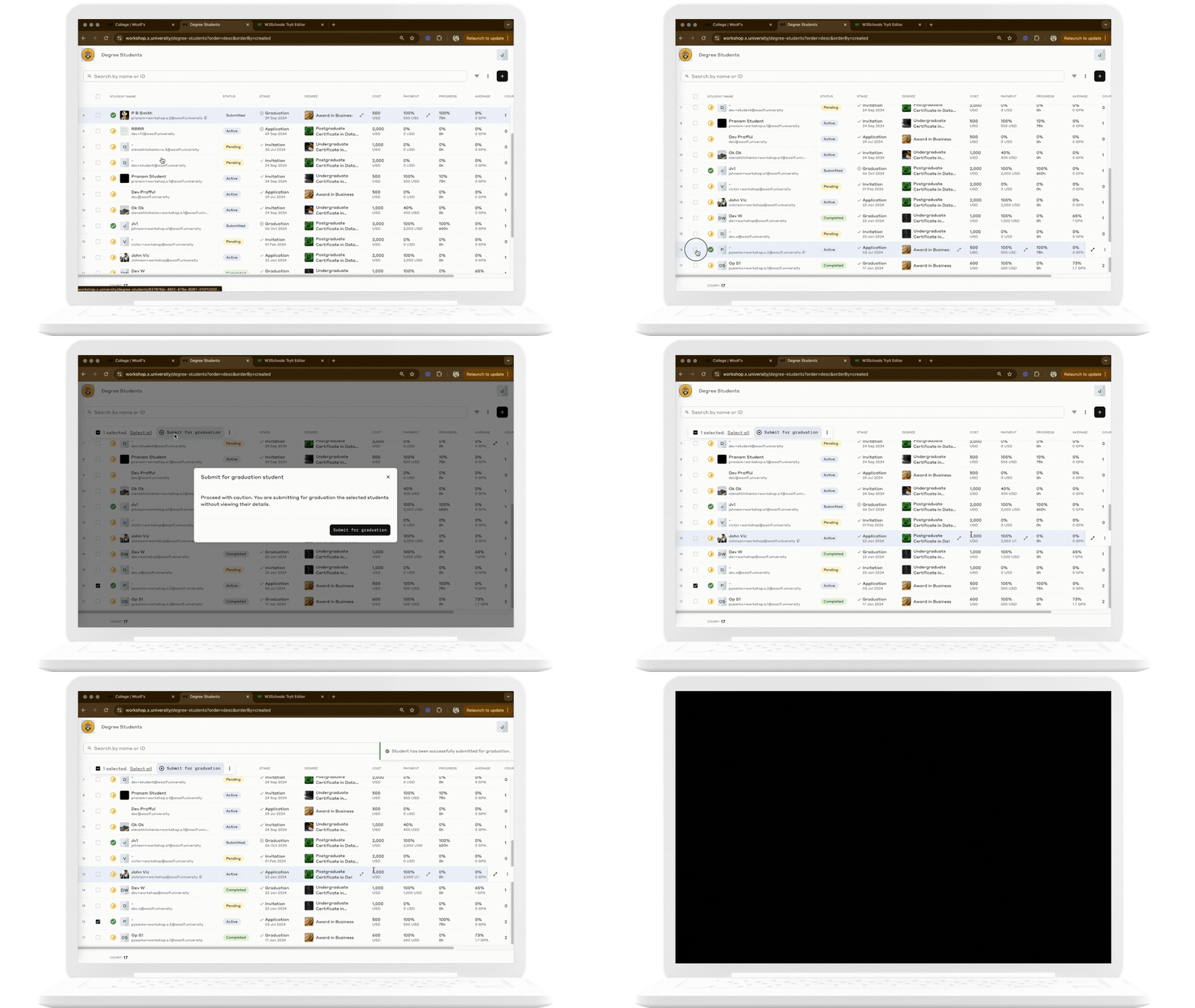
Submit for Graduation: Once students have completed all academic, administrative, and financial requirements, their records can be submitted by the Academic Board for graduation approval. For more information, see Submitting Degree Students for Graduation Approval.
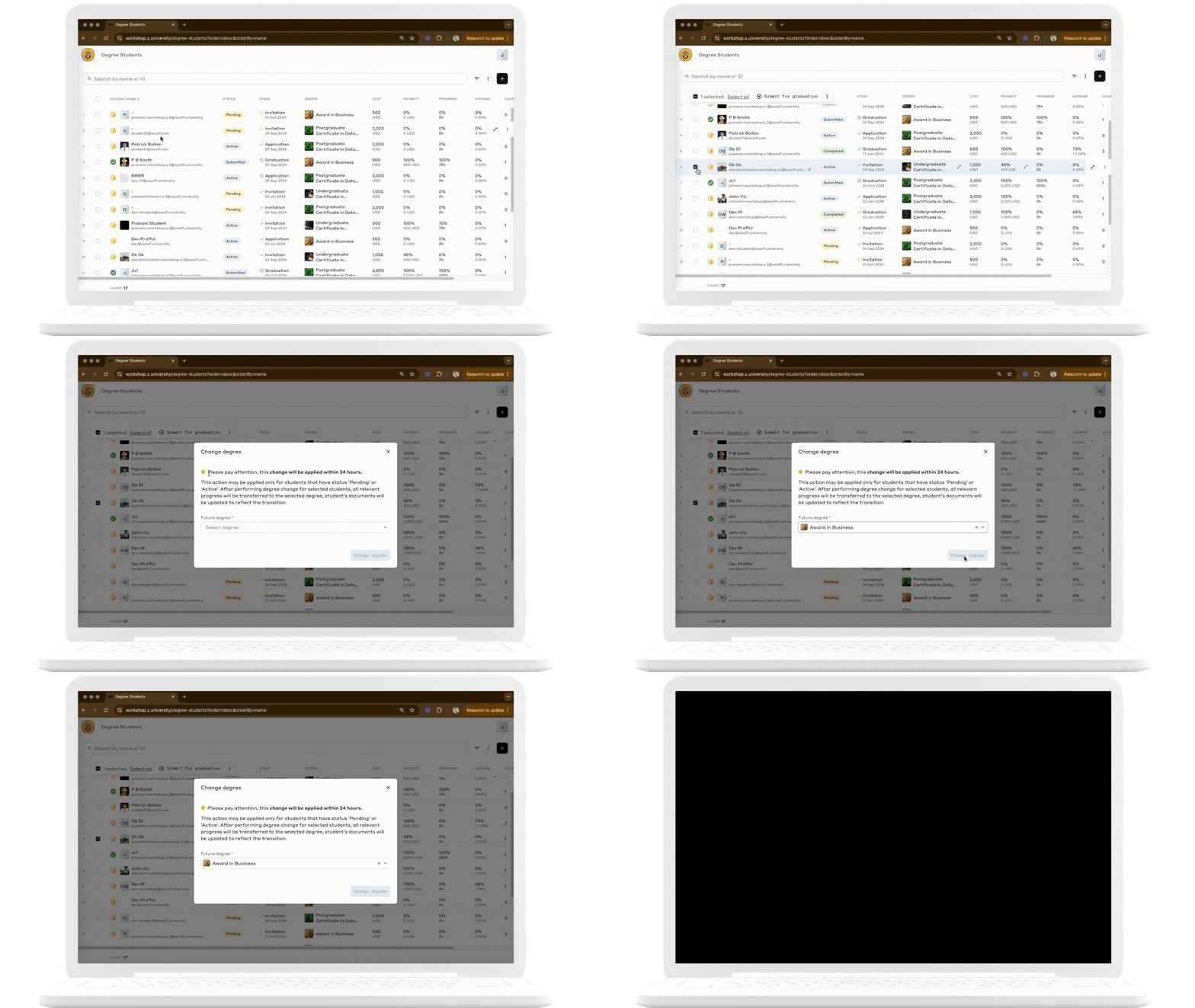
Change Degree: Administrators can change the degree for students with a Pending or Active status. In such cases:
All relevant progress gets transferred to the new degree.
Student documents (e.g., agreement, enrollment letter) are updated to reflect the change.
The changes take effect within 24 hours.
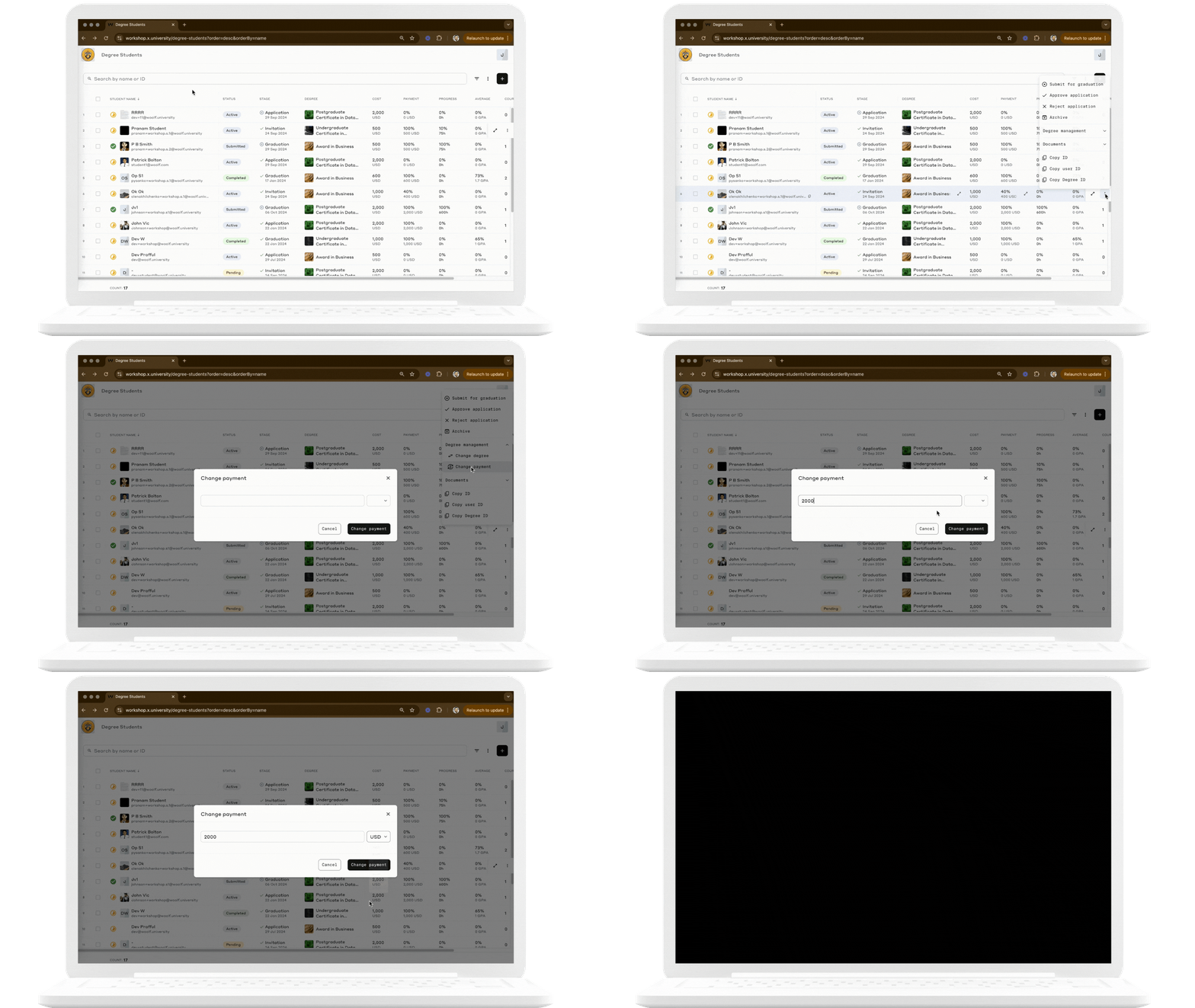
Change Payment: Adjust student payment details, including:
Amount: Update the tuition cost.
Currency: Change the currency for the payment.
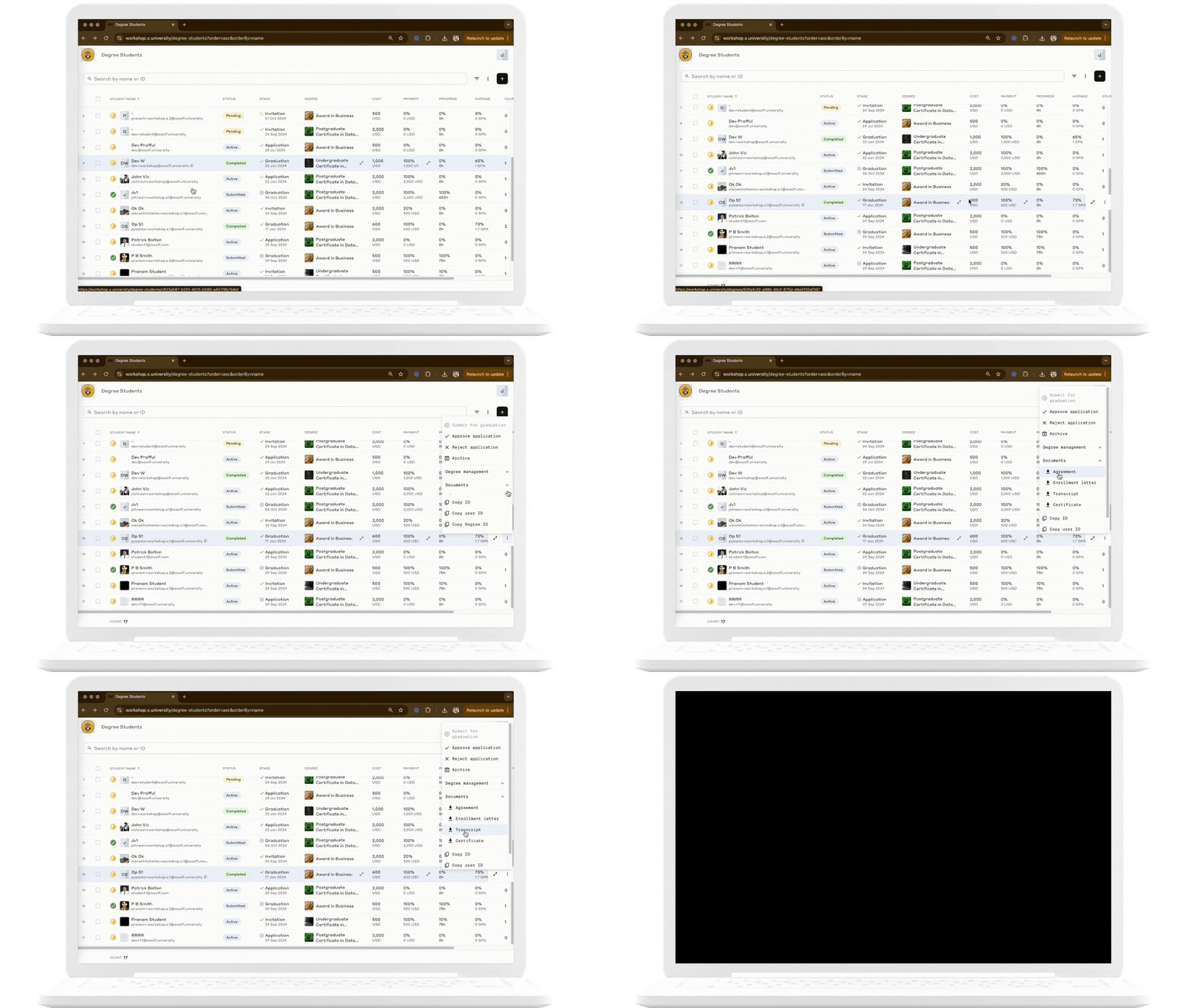
Download Documents: Administrators can download important student documents, including:
Enrollment Letter
Agreement
Transcript
Certificate
These actions provide colleges with efficient tools to manage degree-related processes and ensure compliance with academic and financial requirements.