
Dashboard for Students
The Student Dashboard in Woolf AMS serves as the central hub for managing your academic journey. It lets you track your progress, access essential documents, apply for credit exemptions, and stay updated on your coursework and milestones toward graduation.
Key Functionalities
Real-time Academic Progress Monitoring: Track your degree and course progress, including completion status and required milestones.
Access to Essential Documents: Easily download important documents such as enrollment letters, transcripts, and degree certificates.
Coursework and Credit Allocation: Stay informed on your coursework, track credit accumulation, and ensure timely progression toward graduation.
Navigating the AMS
The left sidebar gives you access to all key areas of your account. It is divided into two sections:
Useful Links
Dashboard: Your main overview page showing your degree progress and courses.
Credit Exemption: Apply to have prior learning or work experience recognised for academic credit. (This is subject to enablement at your college level)
Documents & ID: Access your student ID, degree documents, and public profile settings.
Community: Link to your college's community platform.
Woolf Shop: Order physical documents, apostilles, and other services.
Support
Woolf Library: Access the Woolf digital library.
Help Center: Browse guides and FAQs (you're here now).
College Support: Email your college's support team directly.
Woolf Support: Contact Woolf's support team.
Legal Documents: Access Woolf's regulatory and legal resources.
Dashboard
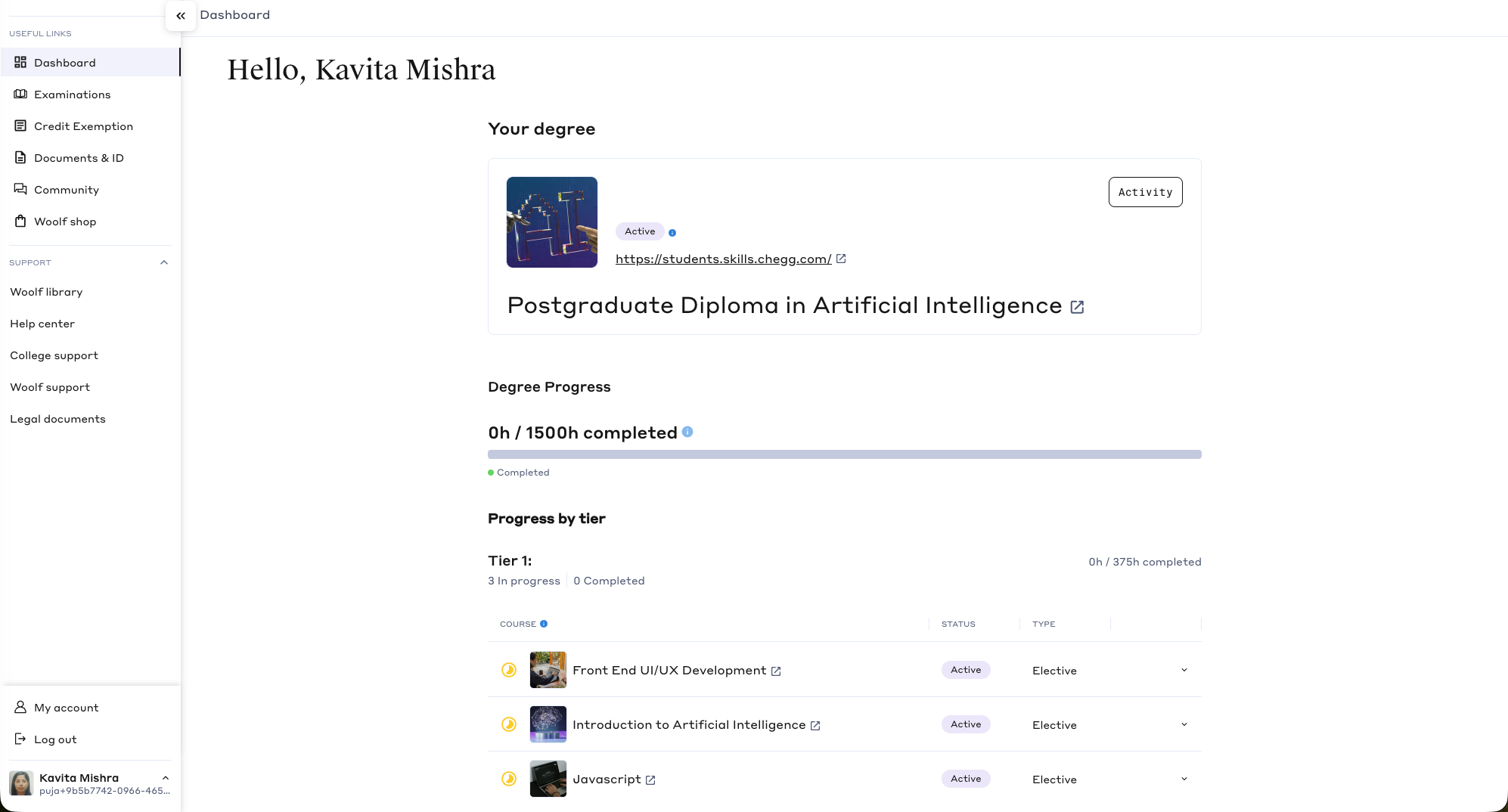
The Dashboard is your home screen. It gives you an at-a-glance view of your academic status.
Credit Exemption Banner If you have prior learning or work experience that may qualify for credit, a banner at the top of the Dashboard invites you to apply. Click Apply now to go directly to the Credit Exemption application.
Your Degree
The Your degree section shows:
Degree Status: A badge indicating your current enrollment is Active, Pending, or Completed.
Community Link: A direct link to your college's community platform.
Degree Name: The name of your enrolled program. Click it to view full degree details.
Activity button: Opens a timeline of academic events: course completions, grade submissions, approvals, and more.
Degree Progress
Below the degree header, the Degree Progress section shows your total workload hours completed out of the required total (e.g., 0h / 2250h completed), with a breakdown by completion status.
Progress is also broken down by tier. Each tier shows:
Hours completed out of the tier total
Number of courses in progress and completed
ECTS credit requirements for that tier
A description of what the tier covers (e.g., core modules, electives, capstone)
Each course row shows:
Course name and linked program
Status: Active, In Progress, or Completed
Type: Compulsory or Elective
Tip: Click Activity on the Dashboard to see a full timeline of your academic journey, including course completions, grade submissions, and approvals.
Your Courses
Below the degree tiers, the Your courses section lists any standalone courses associated with your account, along with their current status.
Documents & ID
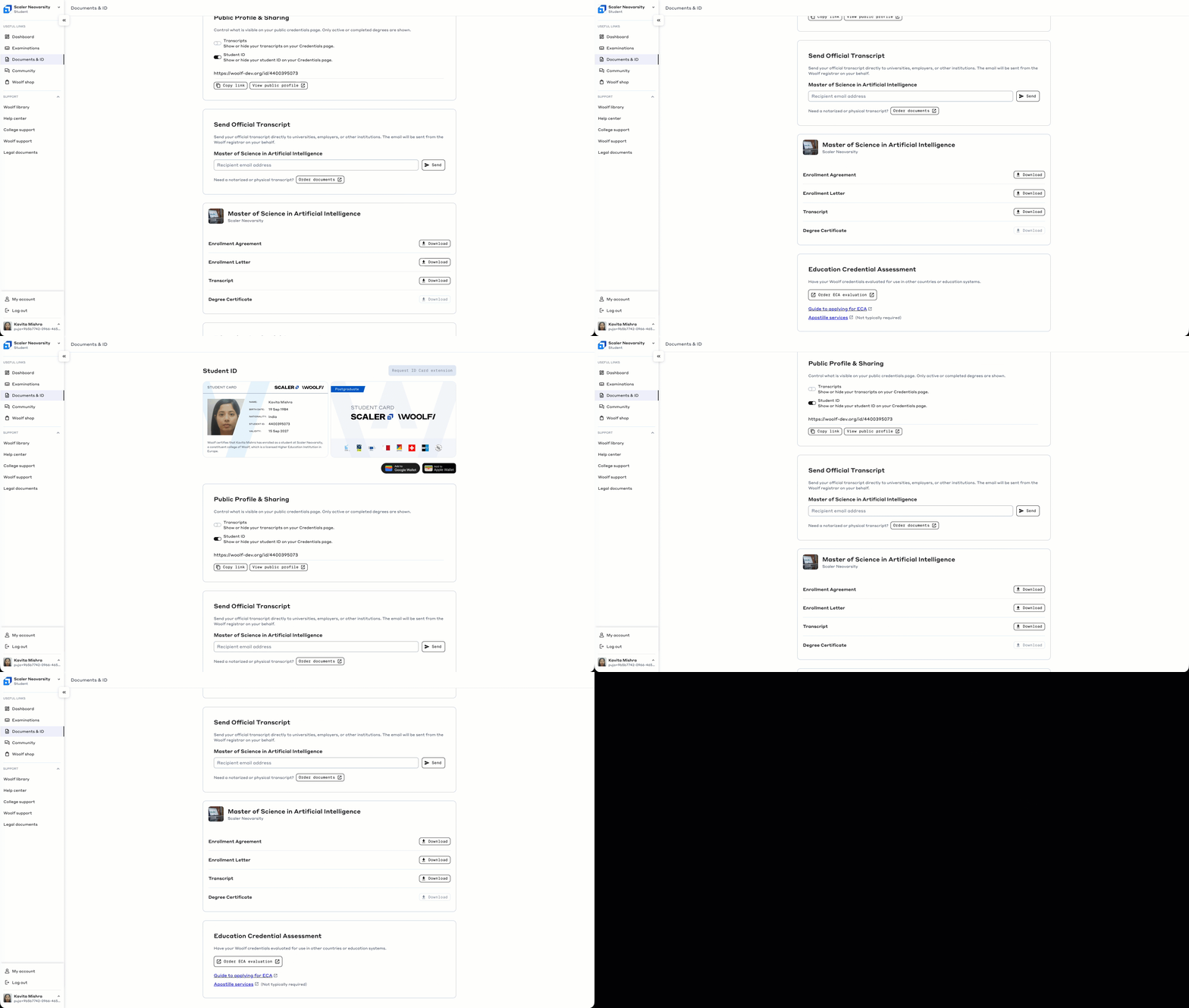
The Documents & ID page is accessible from the sidebar. It brings together your student credentials, degree documents, public sharing settings, and official document services.
Student ID Card
The Student ID Card is a digital credential confirming your enrollment. It displays:
Name, Birth date, Nationality, Student ID: your personal details as registered.
Validity: the expiry date of your student ID.
A short enrollment statement from Woolf certifying your student status.
You can add your student ID to your Google Wallet or Apple Wallet directly from this page.
Tip: Add your ID to your phone wallet for easy access when needed.
Degree Documents
Each enrolled degree has its own documents section. Available documents include:
Enrollment Agreement: Download your signed enrollment agreement.
Enrollment Letter: Download an official letter confirming your enrollment.
Transcript: Updated dynamically as you complete courses. Download at any time.
Degree Certificate: Available to download once you have completed your degree.
Tip: Download any of these for official use — visa applications, job applications, employer verification, etc.
Send Official Transcript
The Send Official Transcript section lets you send your transcript directly to a university, employer, or other institution by email. Enter the recipient's email address and click Send.
Note: The recipient will receive your official transcript directly from the official Woolf Registrar email address.
For notarized or physical copies of your transcript, click Order documents to visit the Woolf Shop.
Public Profile & Sharing
The Public Profile & Sharing section lets you control what is visible on your public credentials page:
Toggle Transcripts on or off to show or hide them publicly.
Toggle Student ID on or off to show or hide it publicly.
Copy or open your public profile link to share with employers or institutions.
Tip: Share your public credentials link with employers or academic institutions instead of sending documents manually.
Education Credential Assessment (ECA)
If you need your Woolf credentials evaluated for use in another country or education system, the Education Credential Assessment section provides:
Order ECA evaluation: Submit your credentials to the International Education Evaluators (IEE).
Guide to applying for ECA: Step-by-step instructions for the ECA process.
Apostille services: Available via the Woolf Shop.
Credit Exemption
The Credit Exemption page lets you apply for Recognition of Prior Learning (RPL). It is a process by which your previous work experience or learning may count toward your degree requirements.
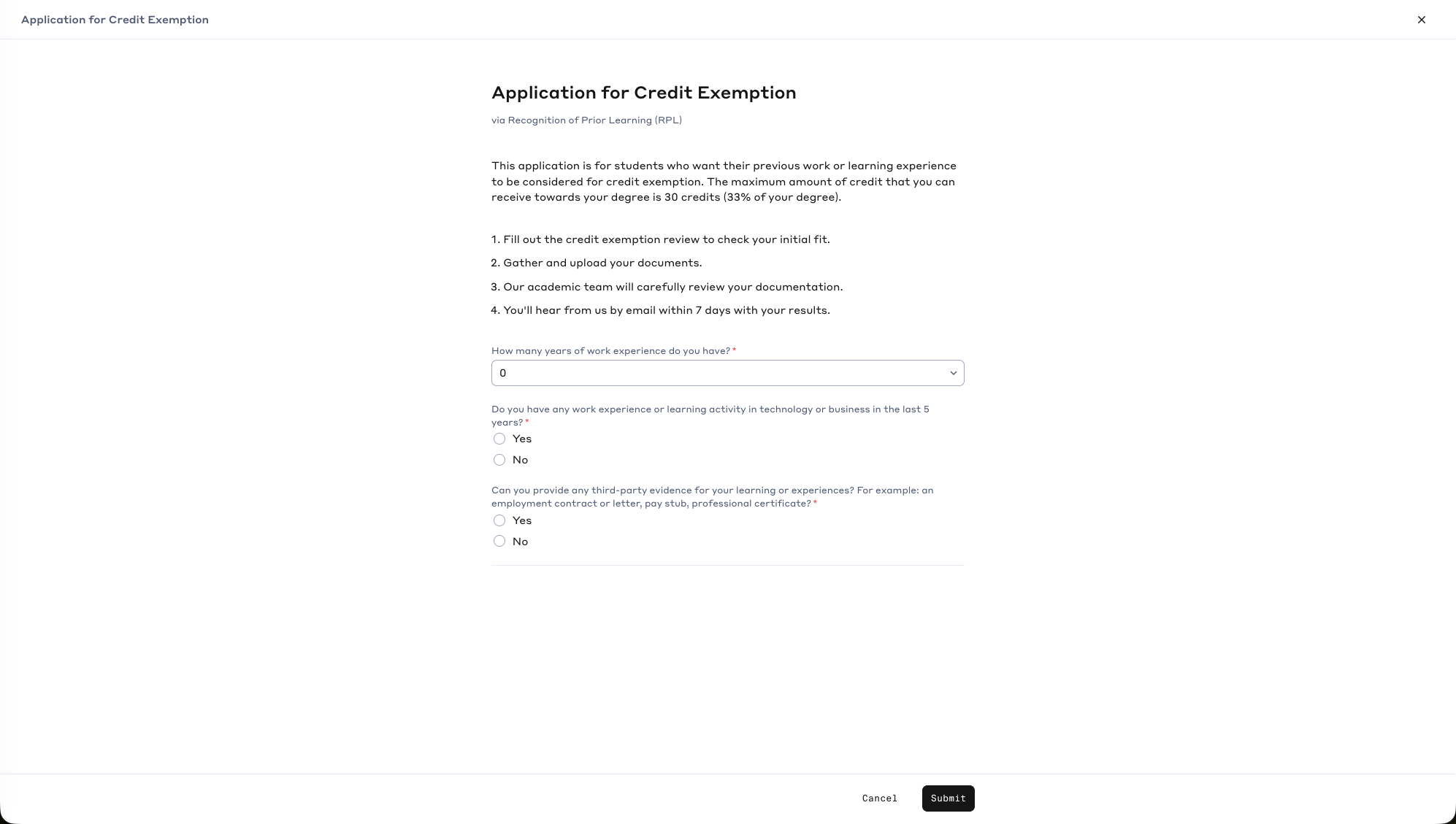
The application process works as follows:
Fill out the credit exemption review to check your initial fit.
Gather and upload your supporting documents.
The Woolf academic team reviews your documentation.
You'll receive a decision by email within 7 days.
The initial form asks:
How many years of work experience you have.
Whether you have relevant experience in technology or business in the last 5 years.
Whether you can provide third-party evidence (e.g., employment letters, certificates).
Tip: You can also access the Credit Exemption application directly from the banner on your Dashboard.